
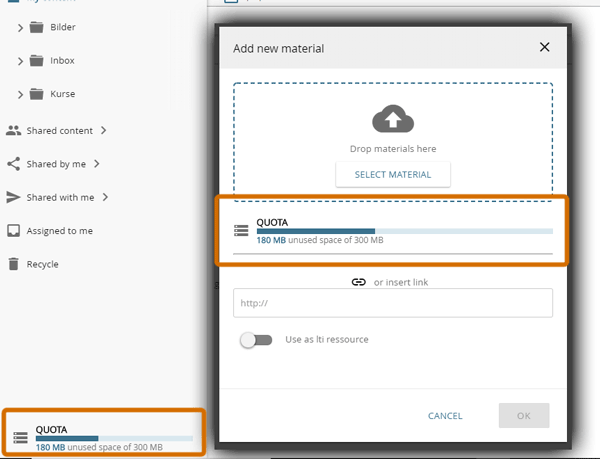
A quota can be set for each user. The quota and the amount used by the user is displayed in the lower right corner of the workspace and in the upload dialogue.
Setting the user quota
The quota for each user is set in the user management.
-
Open the user management.
-
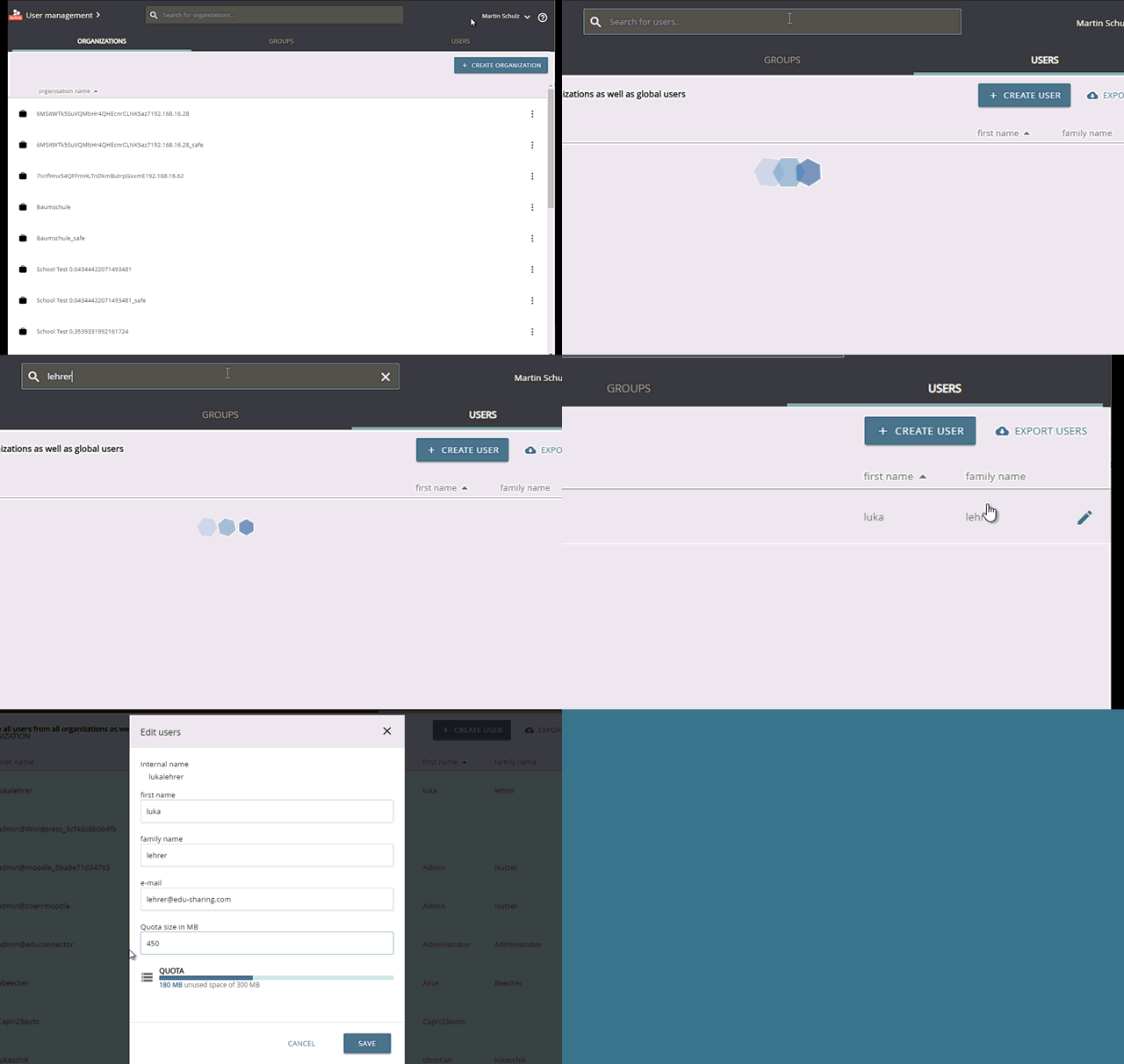
Search for the desired user by first selecting the "USERS" tab and then using the search functionality.
-
Open the user properties by clicking on the little pen icon.
-
Enter the desired quota and click on "SAVE". Setting "0" as the quota gives the user unlimited drive space.
-
Save.
setting the user quota
Changing the user quota
The quota for each user is set in the user management.
-
Open the user management.
-
Search for the desired user by first selecting the "USERS" tab and then using the search functionality.
-
Open the user properties by clicking on the little pen icon.
-
Enter the desired quota and click on "SAVE". Setting "0" as the quota gives the user unlimited drive space.
-
Save.